
Bloxkeep guide › Staying in game
Staying in game
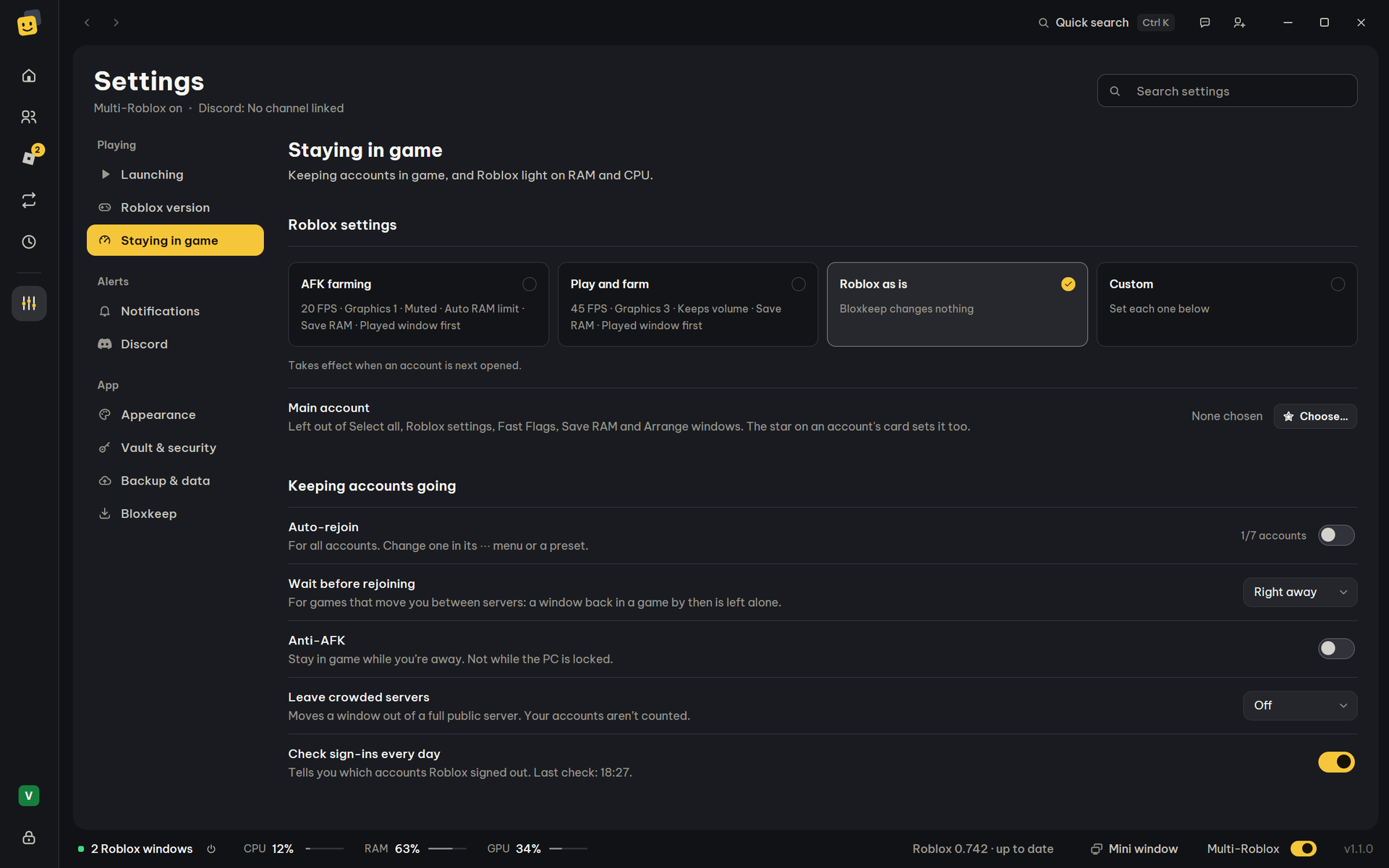
How Bloxkeep keeps accounts in their games: Auto-rejoin, Anti-AFK, the daily sign-in check, and the RAM options, on Settings › Staying in game; running from the tray is on Settings › Bloxkeep.
Quick steps
- Open Settings › Staying in game.
- Turn on Auto-rejoin (all accounts). For a single account, use its ⋯ › Auto-rejoin instead.
- Turn on Anti-AFK.
- In Settings › Bloxkeep, leave Keep running in the tray when closed on, so the ✕ button hides Bloxkeep instead of quitting it.
Auto-rejoin
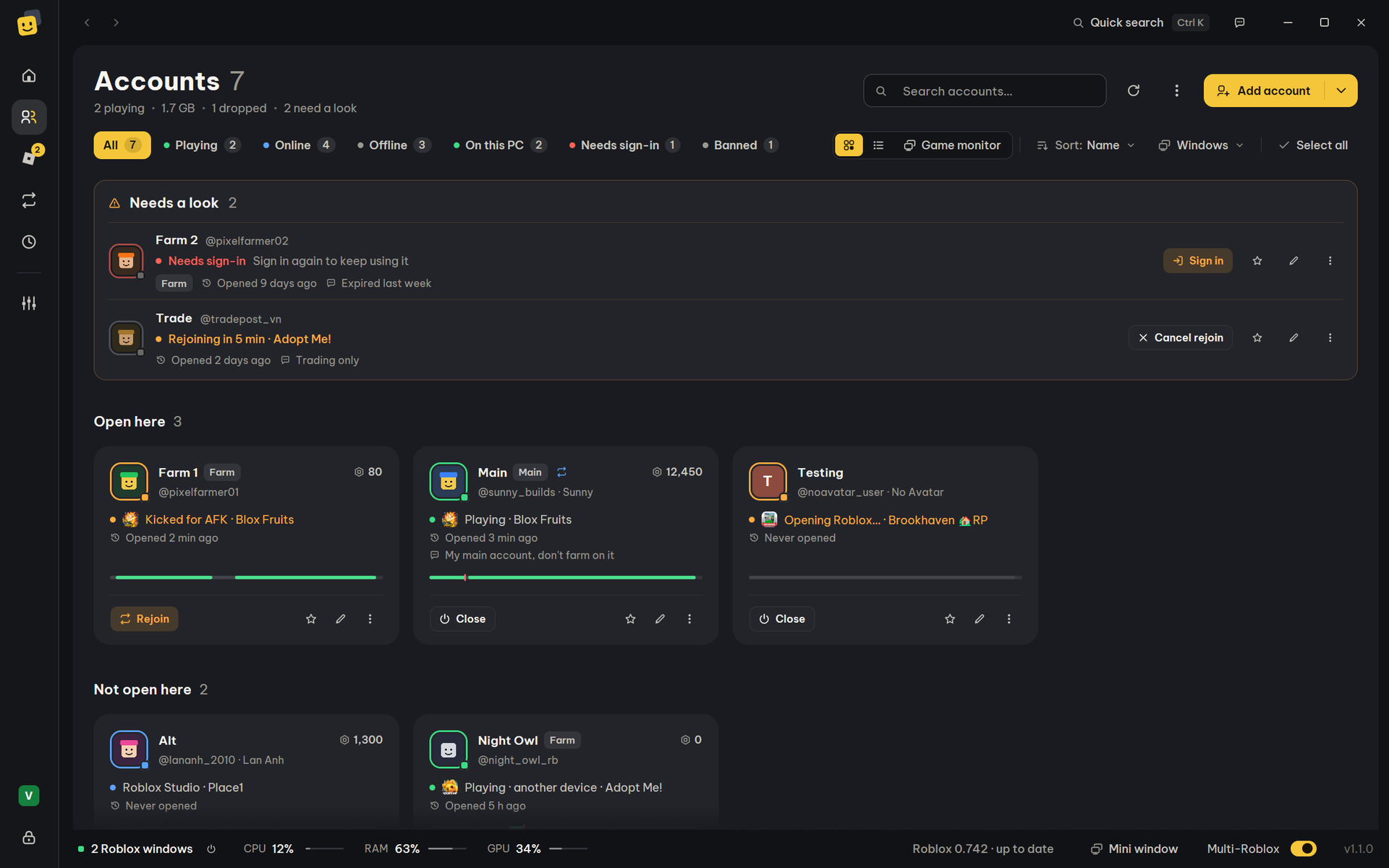
When an account's Roblox disconnects, gets kicked or loses the connection, Bloxkeep opens the same game (or private server) again, though not always the same server. If you switched to another game inside that Roblox window, it opens the game you switched to.
| Turn it on for | Where |
|---|---|
| One account | Its ⋯ › Auto-rejoin. |
| All accounts | Settings › Staying in game › Auto-rejoin (it shows "3/10 accounts" when only some have it). |
| A preset's windows | The preset's Auto-rejoin option (see Presets). |
How long it waits
| Situation | What Bloxkeep does |
|---|---|
| Roblox disconnects | Opens the game again after 10 seconds. |
| It can't get into a server (the one it was sent to is full or has ended) | After a minute without a server, closes it and opens the same game again on any server. A game you started yourself in the window is left to you, however long it takes. |
| It keeps dropping | It keeps rejoining every 10 seconds, and says so once. A ban by the game stops it (Bloxkeep tells you). |
| 10 minutes in the game, even if the game moves you between servers | The count starts over. |
| No internet | Retries every 30 seconds, up to 20 times. |
| The PC wakes up | Waits for the connection first. |
When it doesn't rejoin
- You left the game yourself, or closed the Roblox window yourself.
- The account signed in on another device.
- Roblox itself doesn't allow reconnecting after this disconnect (no access to a private server any more, Roblox needs an update, the account is already in another game…). The window keeps Roblox's message and Bloxkeep says why. A kick by the game is still rejoined.
- The account is banned.
- Roblox itself closed the window because another one opened.
- Bloxkeep is locked. Auto-rejoin works again once you unlock.
More details
- If Roblox ends an account's sign-in, auto-rejoin turns itself off for it, and back on once you sign in again.
- With Multi-Roblox not ready, a rejoin is skipped (a new window would close the open one) and you're told. See Multi-Roblox.
Anti-AFK
Settings › Staying in game › Anti-AFK (a preset can override it). Roblox kicks an account after 20 minutes without input. Bloxkeep switches to each Roblox window that is in a game for a moment without you seeing it: the window turns invisible and lets clicks through (a click at that moment still lands in your window), gets one press of F15 (a key regular keyboards don't have, so games don't use it), and you're back in your window. The mouse doesn't move, nothing is clicked, and a minimized window stays minimized.
- It steps in from 12 minutes after a window's last input, at the first minute nobody uses the PC.
- A window two minutes from its kick gets it even while you use the PC, in a 2-second pause, but never over a full-screen app.
Warning
Anti-AFK can't work while the PC is locked.
If an account is kicked anyway, Bloxkeep says why: the PC was in use, it was locked, a full-screen app was in front, or Windows kept the window in the background.
Leave crowded servers
Settings › Staying in game › Leave crowded servers, off by default. Pick a number: a window in a public server with more players than that (your own accounts not counted) closes and opens again in a server with that many or fewer, apart from your other accounts.
- Bloxkeep counts every 2 minutes from Roblox's server list, the same list as Servers. Roblox's numbers can be a few seconds behind the game.
- A window that just joined is left alone for 90 seconds.
- Private servers, share links and A player's server stay where they are.
- When no server is quiet enough, Bloxkeep says so and looks again later.
Fast Flags
Off by default. On: the windows Bloxkeep opens get a grey sky, no grass and the lowest graphics, for a little less RAM. Your own Roblox settings come back once they've opened. With Bloxstrap, Fishstrap or Voidstrap, the launcher's own flags win.
Daily sign-in check
Settings › Staying in game › Check sign-ins every day (on by default). Roblox can end a saved sign-in without telling anyone.
- Once a day, about 45 seconds after you unlock, Bloxkeep checks every account's sign-in, one at a time, 2 seconds apart. It also checks whether Roblox reports a ban.
- One notification names the accounts that need to sign in again. The row shows "Last check: …".
- To check now: ⋯ › Check sign-in on an account, or ⋮ › Check sign-in of all accounts at the top of Accounts.
Low RAM warning
Settings › Staying in game › Low RAM warning (on by default).
- Before opening, it asks when the free RAM can't take the new windows (the Before you open question, see Playing).
- While playing, it warns when the PC uses 92 % of its RAM or more, at most every 5 minutes.
- When RAM is free but Windows' virtual memory is almost full, it says that instead, before opening and while playing: a Roblox window then crashes as it opens. See Troubleshooting.
- RAM in the bar at the bottom changes to the warning colour from 90 % (see Windows and statistics).
Save RAM for background windows
Settings › Staying in game › Save RAM on background windows (off by default). Roblox windows you aren't playing in get a low memory priority, so Windows takes RAM from them first, only when it runs short. A window minimized or hidden for a minute has its RAM emptied once, and what the game still uses comes back. Windows in view are not emptied: the games would stutter when they needed it back.
The window in front gets its normal priority back. If Windows refuses for a window, that window runs as usual.
A game whose RAM keeps growing over hours only gets it back when Roblox restarts: use Restart a heavy window (below) or a preset's Restart Roblox (see Presets).
RAM limit when minimized or hidden
Settings › Staying in game › RAM limit when minimized or hidden: No limit (the default), Auto (per game), 512 MB, 768 MB, 1 GB, 1.5 GB or 2 GB. A Roblox window that is minimized, or hidden by Bloxkeep, keeps at most that much in RAM; the rest of what the game holds waits in Windows' virtual memory. A game left to idle uses little of what it holds, so more accounts fit on one PC.
Auto finds the amount for each game: it starts once a window has rested a minute and the PC is using 60 % of its RAM, comes down while the game stays calm, and goes up when the game needs more.
| What it changes | In one test, a game holding about 3 GB ran on with 1 GB in RAM. |
| Below what the game needs | The window can run slowly, as the game keeps fetching what it uses back from virtual memory. If that happens, choose a higher limit or Auto. |
| When it's lifted | As soon as you open the window, bring it to the front, choose No limit, or close Bloxkeep. |
| Windows in view | Not limited, even behind other windows: they still draw, and limited they use more CPU. |
| What it needs | Enough virtual memory, best on an SSD. Bloxkeep warns when virtual memory is almost full. |
Light AFK presets minimize their windows, so they get the limit too.
Restart a heavy window
Settings › Staying in game › Restart a heavy window: Never (the default), or Above 3 GB, 4 GB, 6 GB or 8 GB. A Roblox window in a game that stays above that much RAM for 3 minutes closes and goes back into its server, one window at a time.
- A short peak (a teleport, a big map loading) doesn't count.
- The main account's window is never restarted, and neither is the window you're playing in while you use the PC.
Prioritize the window you play
Settings › Staying in game › Prioritize the window you play (off by default). Most recent CPUs have two kinds of cores: fast ones and efficiency ones (Intel 12th gen and later, many recent laptops). With this on, every Roblox window in the background runs in Windows' efficiency mode, the same as Task Manager's: it gives way to the window you're playing and runs mostly on the efficiency cores, using a fast core only when one is free, so no window is left without CPU. Click another Roblox window and it runs at full speed at once.
- Many accounts open stay smooth where you play, and a laptop runs cooler.
- On a CPU with one kind of core, background windows only get the power-saving mode.
- These are Windows' own settings (Task Manager's "Set affinity" and efficiency mode): nothing in Roblox is changed. Turning it off, or closing Bloxkeep, gives the windows Windows' own choice back.
The tray
Settings › Bloxkeep › Keep running in the tray when closed (on by default). The ✕ button hides Bloxkeep to the system tray. Auto-rejoin, Multi-Roblox and schedules keep working.
Click the tray icon for the quick panel, like Windows 11's own:
- How many Roblox windows run and their RAM, with buttons for the mini window and for Bloxkeep itself.
- Multi-Roblox with its switch. With your accounts unlocked it turns off from here; turning it on opens Bloxkeep, which asks first.
- The accounts playing now: click one to bring its Roblox window up, or use the eye and the ✕ that show when the pointer is on it. Close all asks with a second click.
- Play lists your accounts to open, Presets your presets, and New Roblox opens a Roblox window to sign in to separately.
Right-click the tray icon for the menu:
| Item | What it does |
|---|---|
| The first row | Multi-Roblox's state and how many Roblox windows run. |
| Open Bloxkeep, Mini window | Bring the main window back, or open the small always-on-top window. |
| Play as, Run preset | Open an account (into the game in the bar) or run a preset. An account already playing is ticked. |
| New Roblox window to sign in | A Roblox window you sign in to yourself; its sign-in isn't saved. |
| Multi-Roblox | Shows On, Not ready or Off; its submenu turns it off (or opens Bloxkeep to turn it on or fix it). |
| Close all Roblox | Its submenu closes every Roblox window, and says how many. |
| Quit Bloxkeep | Closes Bloxkeep. |
With the option off, ✕ quits Bloxkeep.
← User guide · Next: Windows and statistics →