
Bloxkeep guide › Presets
Presets
A preset saves a set of accounts, a game and how to open them, so you can start it with one click or on a schedule.
Quick steps
- Open Automation (the arrows in the bar on the left), stay on Presets and press New preset.
- Type a Name and pick the Game. Leave the game empty to open only the Roblox home screen.
- Choose the Server and tick the Accounts, in the order you want them to open.
- Press Save, then Run on its row.
A preset keeps the accounts (in order), the game, how to pick the server, the wait between accounts, options for the windows, where its Discord messages go, and a schedule. You can keep up to 50.
Creating a preset
- Automation › Presets › New preset.
- Presets in the bar at the bottom of Accounts › Save as preset…. It starts from what the bar holds: the selected accounts, the game, the Job ID as a Fixed server, and the game's name as the preset's name.
- Ctrl+K › "Save as preset…".
| Field | What it means |
|---|---|
| Name | Required. |
| Game | Same box as the one at the bottom of Accounts. Empty just opens Roblox. |
| Server | Any (Roblox picks), Most players, Fewest players, Lowest ping, Random, Fixed server (Job ID), or A player's server. These put all the accounts in one server. Own server each (fewest players, most players or random) puts every account in a public server of its own, none shared. |
| Job ID | Only for Fixed server. |
| Player | Only for A player's server: their username or user ID. The accounts join the server that player is in (no game needed), and each rejoin looks them up again. If the player can't be joined when the preset runs (offline, not in a game, a hidden server), it doesn't run and says why. |
| Wait between accounts | Follow Settings (the default) or 0 to 120 seconds. |
| Accounts | Tick them. Ticked accounts open in this order: drag the handle or use the arrows. |
More details
- The server is picked when the preset runs, among servers with room for its accounts. If none has room, Roblox picks.
- If the picked server doesn't let the first account in (it is full or has closed), the accounts go to another one with room for them all.
- If accounts were deleted, the form says so; they're left out when you save.
- If saving is refused, the reason shows above the buttons and the box to fix gets the focus.
Options for the Roblox windows
These apply to the windows this preset opens, until they close (also when they rejoin). Pressing Play the normal way still follows Settings. An account in two presets follows the one that opened its window.
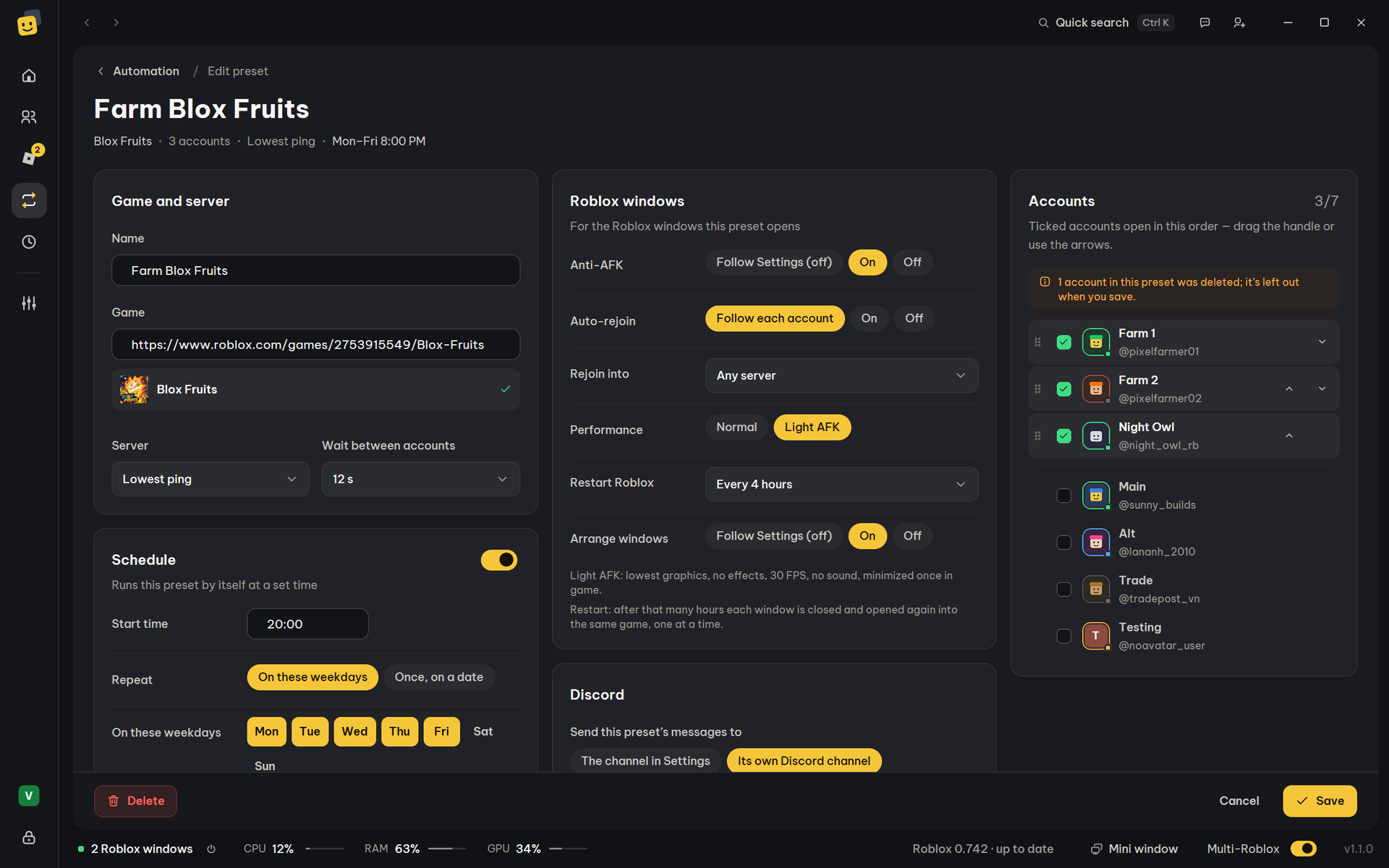
| Option | Choices |
|---|---|
| Anti-AFK | Follow Settings (on/off), On, Off |
| Auto-rejoin | Follow each account, On, Off |
| Rejoin server | Any, With another account, or With one of the preset's accounts: a dropped account (or one reopened by Restart Roblox) rejoins the server that account plays in, so the group stays together. If that server is full, or nobody is left in a game, it rejoins any server. Needs a game; not shown when the preset follows a player or auto-rejoin is off. |
| Performance | Normal, or Light AFK: lowest graphics, 30 FPS, no sound, and the window is minimised once it's in the game. Your own Roblox settings come back once they've opened. |
| Restart Roblox | Never, or Every 2 / 4 / 6 / 12 hours: each window is closed and opened again into the same game (or the game you switched to in that window), one at a time. Needs a game. |
| Arrange windows | Follow Settings (on/off), On, Off: tiles the windows once the preset has opened them. |
Discord for a preset
Send this preset's messages to: The channel in Settings, or A webhook of its own (paste its link; Send test checks it). That covers its schedule messages, its summary after a scheduled stop, and the alerts about the windows it opened. Everything else goes to the channel in Settings.
If Send to Discord is off in Settings › Discord, nothing goes out. If Discord deletes the preset's webhook, its messages go to the channel in Settings again. More in Discord.
Schedule and stop after
Turn on Schedule ("Runs this preset by itself at a set time") in the editor.
| Setting | Choices |
|---|---|
| Start time | The time it starts. |
| Repeat | On these weekdays (click the days) or Once, on a date. |
| Stop | Never (keep playing), After some hours (½ to 168, in half hours), or At a time. |
- Bloxkeep must be running (it can be in the tray) and unlocked.
- At the stop, only the accounts this run opened are closed.
- A stop still happens while Bloxkeep is locked. One that falls due while the PC sleeps happens when it wakes.
- A one-off schedule switches itself off once it has run (or once its time has passed).
Missed runs
Warning
A start time that passes while Bloxkeep is closed or locked, or while the PC sleeps, isn't made up later.
- If Bloxkeep was locked or the PC was asleep, you're told once ("…didn't run at 20:00: Bloxkeep was locked." or "…the PC was asleep or busy.").
- If opening would need a confirmation (Multi-Roblox off or not ready, low RAM, an account in another game), the run is skipped and you're told. A warning you answered Don't ask again doesn't stop it.
For help finding the cause, see Troubleshooting.
The Presets tab
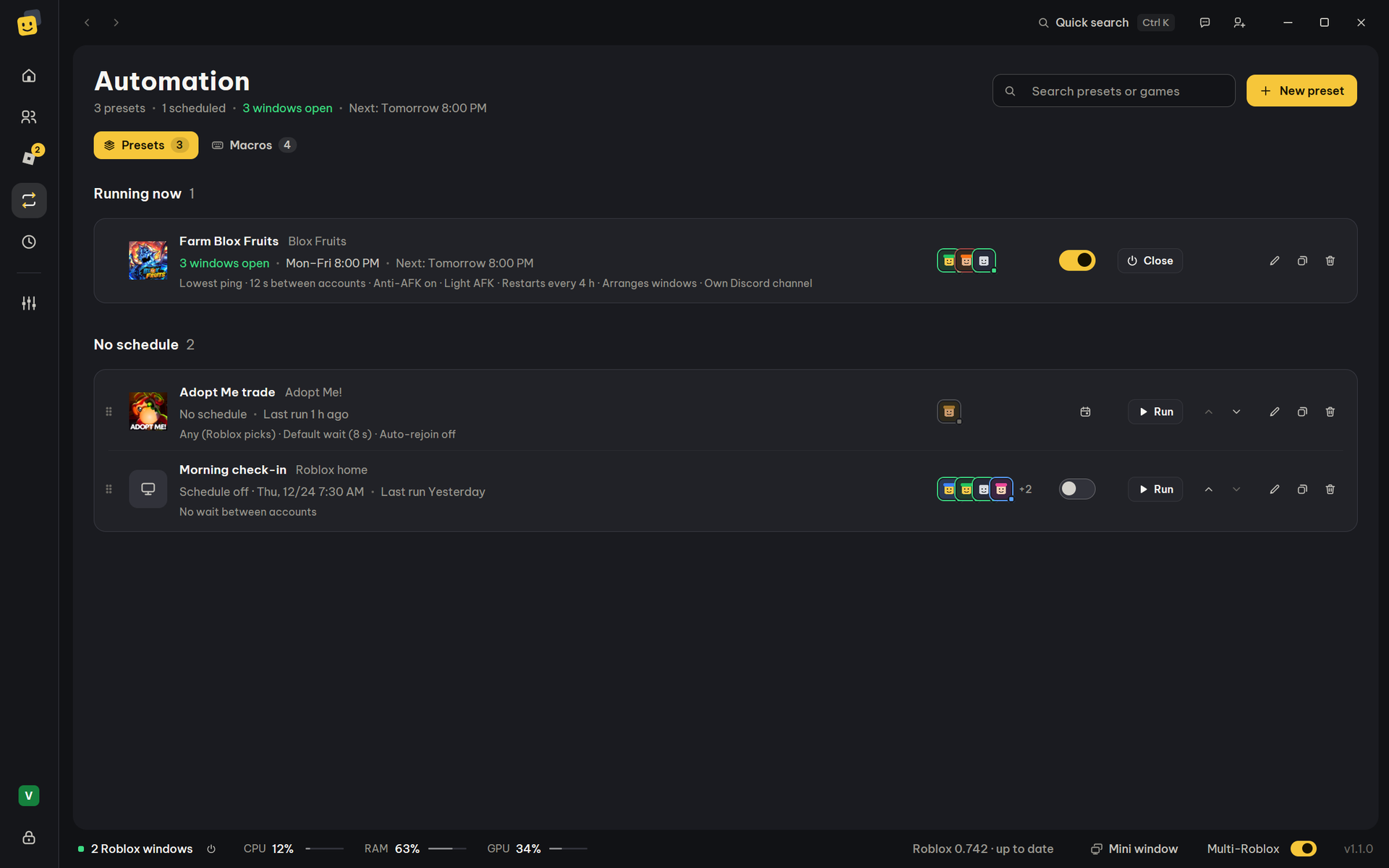
Each row shows the game's icon, the preset's name, its game ("Roblox home" when it has none), and one line of what it does: the server, the wait, the schedule, and options set differently from Settings. Below that: "Next: Today 20:00", "Last run 2 h ago", or "3 windows open". On the right are the accounts' avatars, the Schedule switch (only once a schedule has a start time), then:
| Button | What it does |
|---|---|
| Run | Opens the preset. Greyed out when none of its accounts is left, or while another launch is running. While its windows are open it becomes Close, which closes only the windows this preset opened. |
| Edit | Opens the editor. |
| Duplicate | Makes a copy. Its schedule is off if the original's was on. |
| Delete | Asks first; Don't ask again is possible. |
- The handle and arrows change the order (hidden while you search). The Presets menu at the bottom of Accounts uses the same order.
- The header counts presets and scheduled ones, and says "the most you can keep" at 50.
- Search presets or games (Ctrl+F) filters the list. A preset whose accounts were all deleted shows No accounts left.
Tip
Presets in the bar at the bottom of Accounts lists every preset (click one to run it), then Save as preset… and Edit presets…. In Ctrl+K, type a preset's name to run it.
← User guide · Next: Staying in game →