
Bloxkeep guide › Getting started
Getting started
How to install Bloxkeep, set the master password, and what unlocking, locking and updates do.
Quick steps
- Download Bloxkeep from the Releases page and run
Bloxkeep-Setup.exe. - Pick the install folder and wait for Setup to finish.
- The first time Bloxkeep opens, Set a master password (at least 6 characters).
- Turn on backups: Settings › Backup & data › Back up to a folder.
- Click Add account (see Accounts).
Install
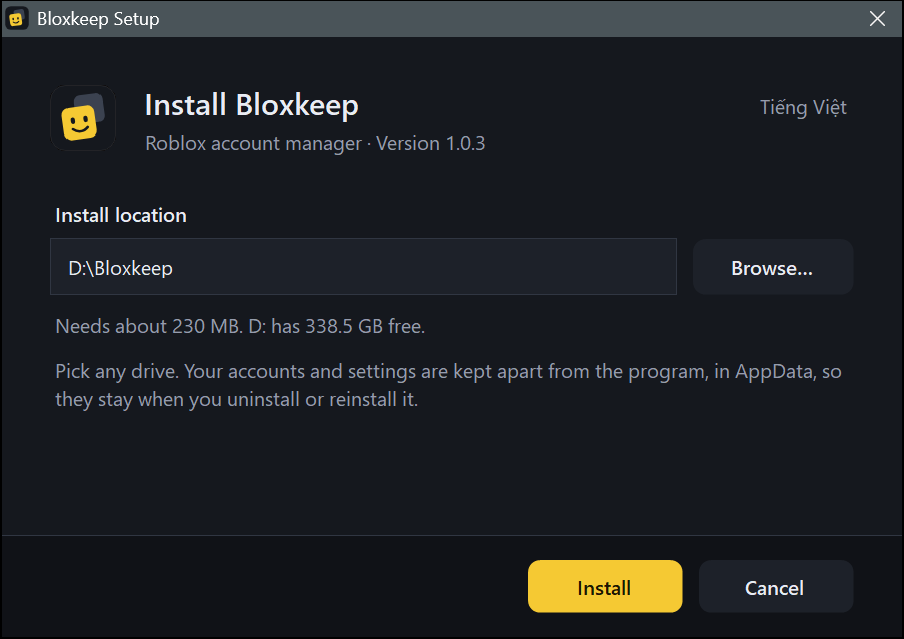
Bloxkeep runs on Windows 10 or 11, 64-bit. You don't need .NET: the installer adds Microsoft Edge WebView2 if it is missing.
| File | Use it when |
|---|---|
Bloxkeep-Setup.exe |
You want a normal install. It is a small file that downloads the newest Bloxkeep (about 45 MB). You choose the folder, on any drive. It installs for your Windows user, needs no admin rights, and adds Start menu and Desktop shortcuts. |
Bloxkeep-Setup-Offline.exe |
The same installer with everything inside, for a PC without internet. |
Bloxkeep-Portable.zip |
You'd rather not install. Unzip and run Bloxkeep.exe; its data goes into a data folder next to it. |
Warning
Download Bloxkeep only from the Releases page. A copy from anywhere else may have been changed to steal accounts.
The files aren't code-signed yet, so Windows SmartScreen warns the first time. Click More info, then Run anyway.
The master password
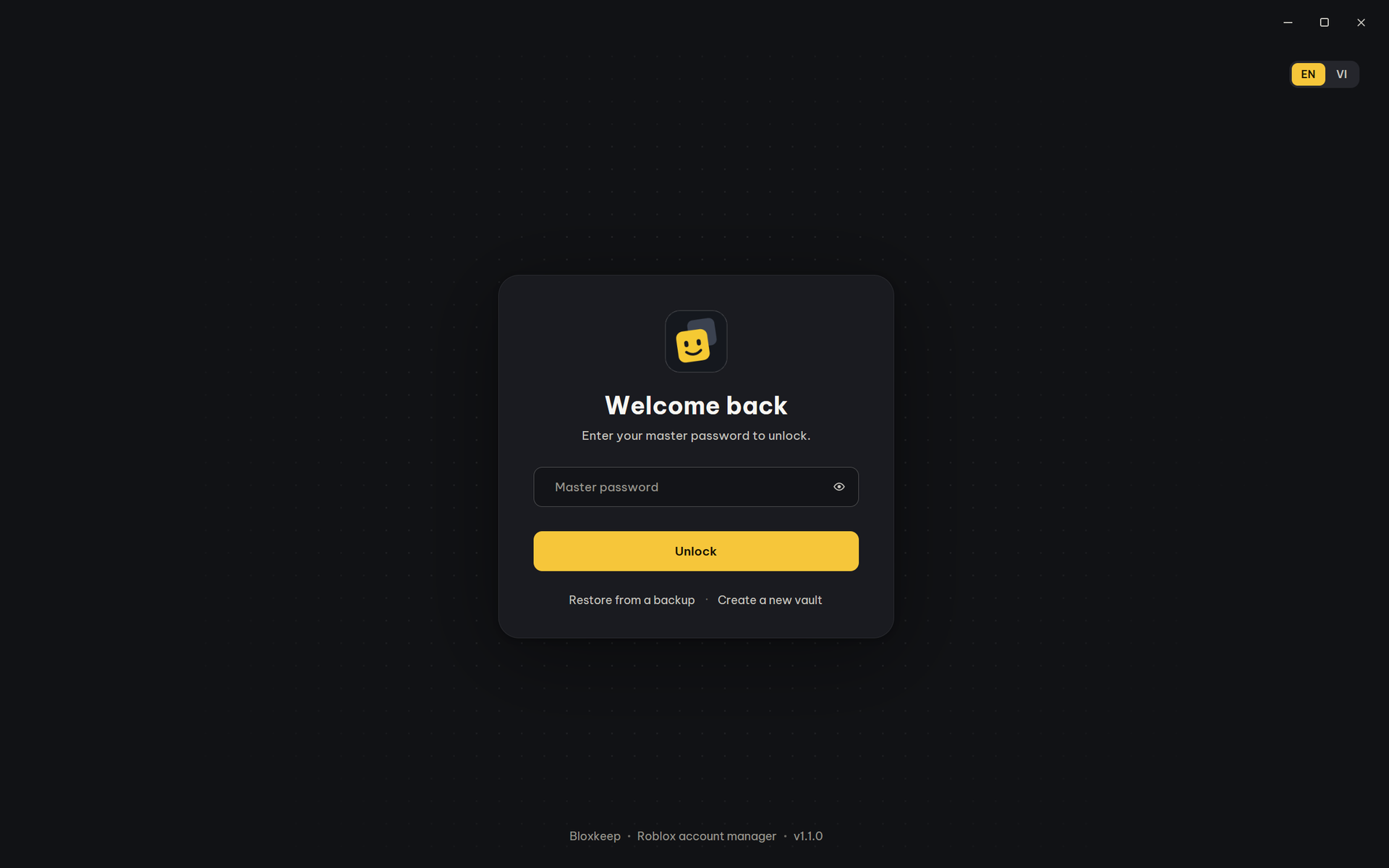
It encrypts everything you save in Bloxkeep, so Bloxkeep asks for it the first time it opens.
- At least 6 characters, and not only spaces. The Weak / OK / Strong bar is only a guide.
- Bloxkeep never stores it, so it can't be recovered. If you forget it, your saved accounts are gone. The only way back is a backup whose password you remember.
- Turn on backups early: Settings › Backup & data › Back up to a folder. A backup opens with the password it was saved with.
- Moving to a new PC? On the first screen choose Restore from a backup instead of setting a new password.
- To change it later: Settings › Vault & security.
- The EN / VI switch in the top corner changes the language (also Settings › Appearance › Language).
Unlock and lock
Each time Bloxkeep starts it shows Welcome back: type the master password and press Unlock. A warning shows while Caps Lock is on. To lock it again, press the lock at the bottom of the bar on the left.
| While locked | What happens |
|---|---|
| Keeps going | Every Roblox window stays open. A scheduled stop still closes its windows on time. |
| Pauses until you unlock | Auto-rejoin, scheduled preset starts and Discord messages. |
| Stops or is cleared | An account launch under way, the Bloxkeep browser window (Open website), a password or 2FA code you copied, and all decrypted data in memory. |
If something would pause (for example "Auto-rejoin for 3 accounts" or "2 scheduled presets"), Bloxkeep asks Lock Bloxkeep? and lists it. Tick Don't ask again to skip the question.
More details
- A scheduled start that comes while locked doesn't run, and isn't run late. After you unlock, Bloxkeep tells you once: "Preset didn't run at time: Bloxkeep was locked."
- The lock screen reminds you that Roblox windows are still open.
Updates
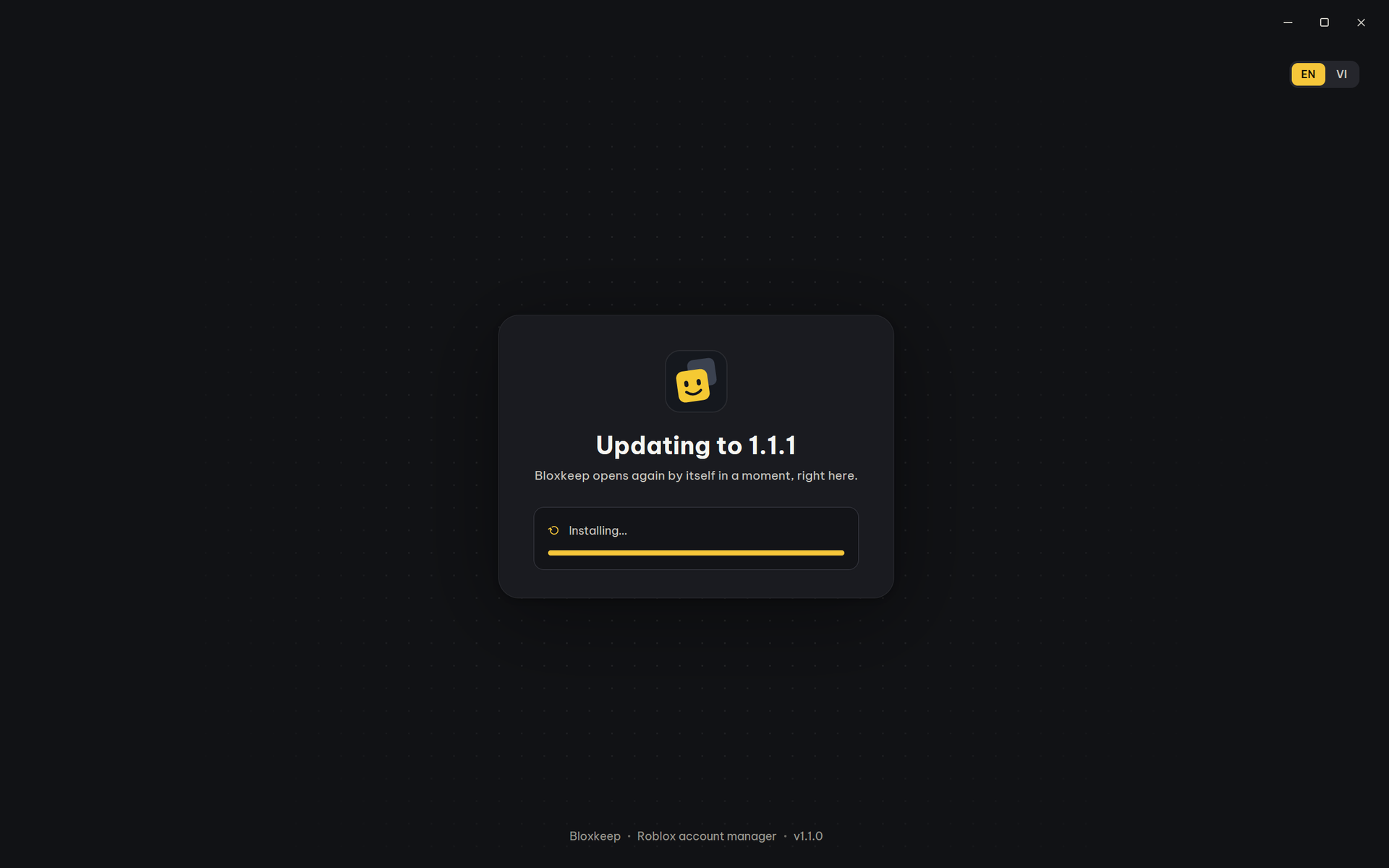
Bloxkeep checks GitHub for a new version as soon as it opens and every hour after. One found before you unlock is installed right there: the lock screen shows Updating to version with its progress, and Bloxkeep opens again on the new version, at the lock screen. One found later downloads in the background and installs by itself the next time you aren't using Bloxkeep, coming back in a few seconds as it was: unlocked, on the same tab. Roblox windows keep running either way.
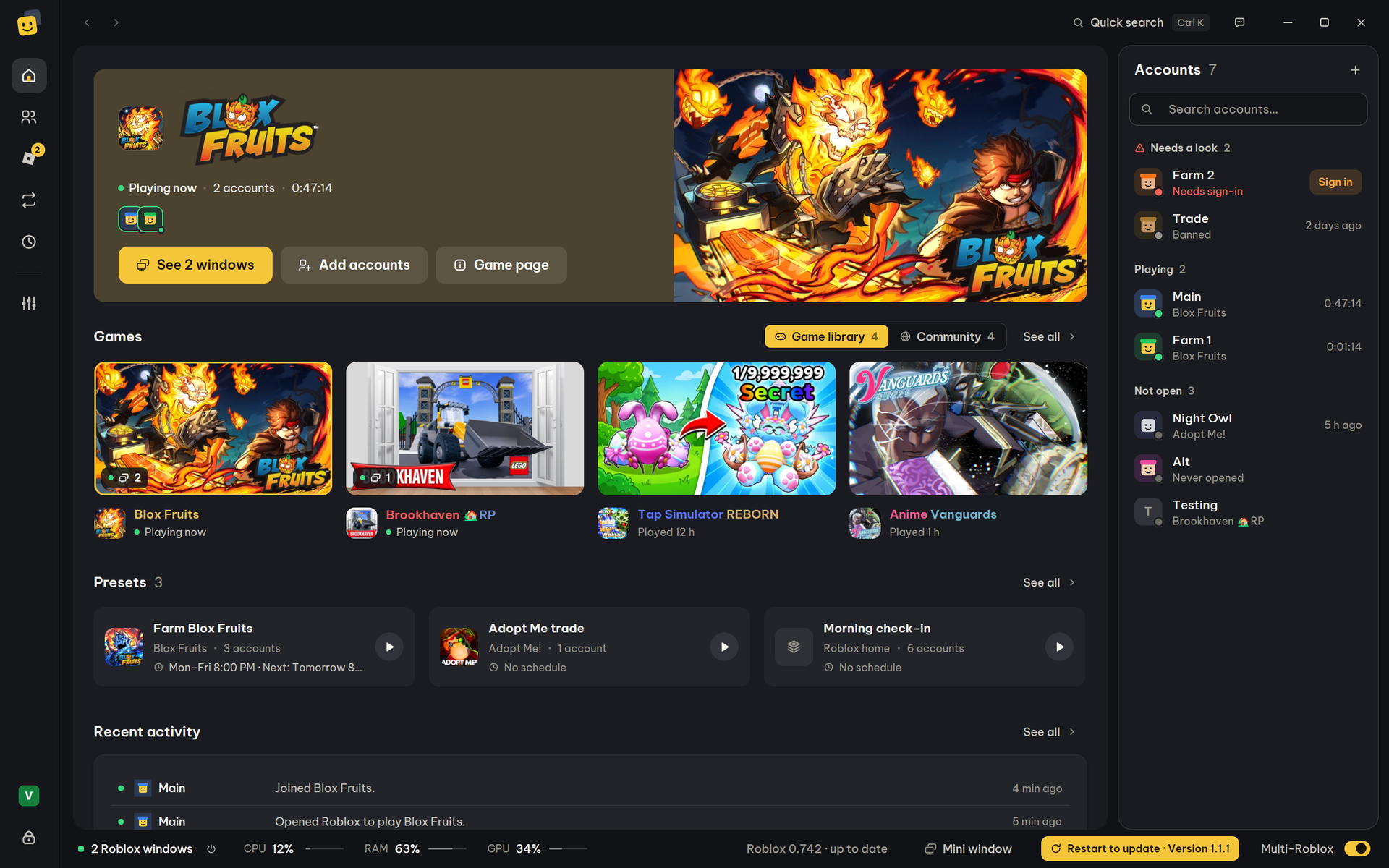
- Restart to update in the bar at the bottom installs it right away. Quitting Bloxkeep installs it too.
- After an update, What's new shows what changed.
- Settings › Bloxkeep shows the version and its state. Check now looks for an update. Update automatically is on by default; off, nothing is downloaded or installed by itself.
- Update automatically is greyed out on a copy that can't update itself ("Only the installed version updates itself").
More details
- On the lock screen, Unlock now, update later gives you the password box back; the update then waits until you aren't using Bloxkeep. If you had already started typing your password when the update was found, the lock screen stays as it is.
- "Not using it" means the window is in the tray or minimised, or nobody has touched the PC for 10 minutes, and Bloxkeep is in the middle of nothing (no Roblox opening, no sign-in, backup or half-filled form). A Roblox window that is just running doesn't hold the update back.
- To type the master password again after each update, lock Bloxkeep first: a locked copy hands over nothing.
- If the new version doesn't come up within about a minute, Bloxkeep starts itself again in the tray, locked, with a notification. That update isn't tried again for a day; Restart to update still works.
Uninstall
Open Windows Settings › Apps › Installed apps, find Bloxkeep and choose Uninstall. Bloxkeep closes first if it is running.
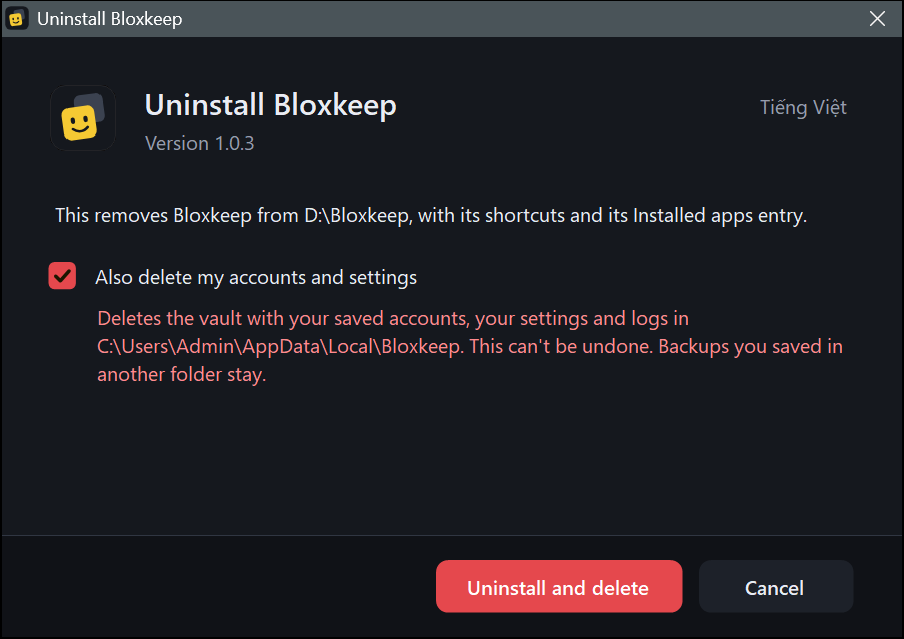
- Also delete my accounts and settings unticked keeps your vault and settings for a later reinstall. Ticked removes them for good.
- Backup files in your backup folder are never touched. Delete them yourself if you want them gone.
- The portable copy has no uninstaller: delete its folder, with its
datafolder.
← User guide · Next: Accounts →