
Bloxkeep guide › Backup and security
Backup and security
The master password and what can't be recovered, automatic backups, restoring, moving to a new PC, importing from another Bloxkeep file, where your data lives, what leaves the PC and Hide account names.
Quick steps
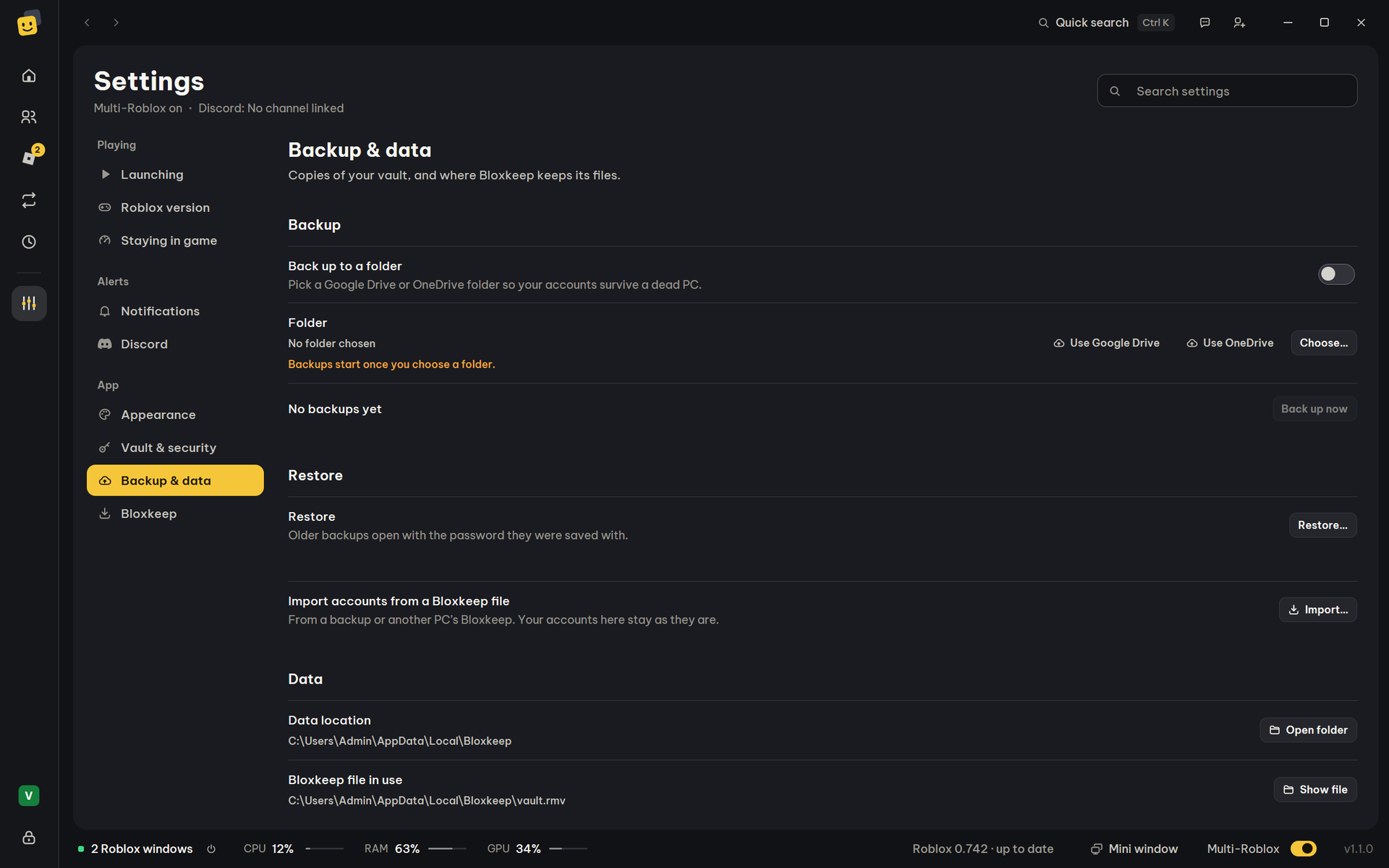
- Open Settings › Backup & data.
- Under Back up to a folder, press Choose… and pick a folder outside Bloxkeep's own data folder. Pick a Google Drive or OneDrive folder if you can: Use Google Drive and Use OneDrive appear when Bloxkeep found one.
- Press Back up now. The row then reads "Last backup: …".
- On a new PC, choose Restore from a backup on the first screen and unlock with the password the backup was saved with.
The master password
The first time Bloxkeep opens, it asks you to Set a master password. It encrypts everything you save in Bloxkeep.
- At least 6 characters, and not only spaces. The Weak / OK / Strong bar is only a guide.
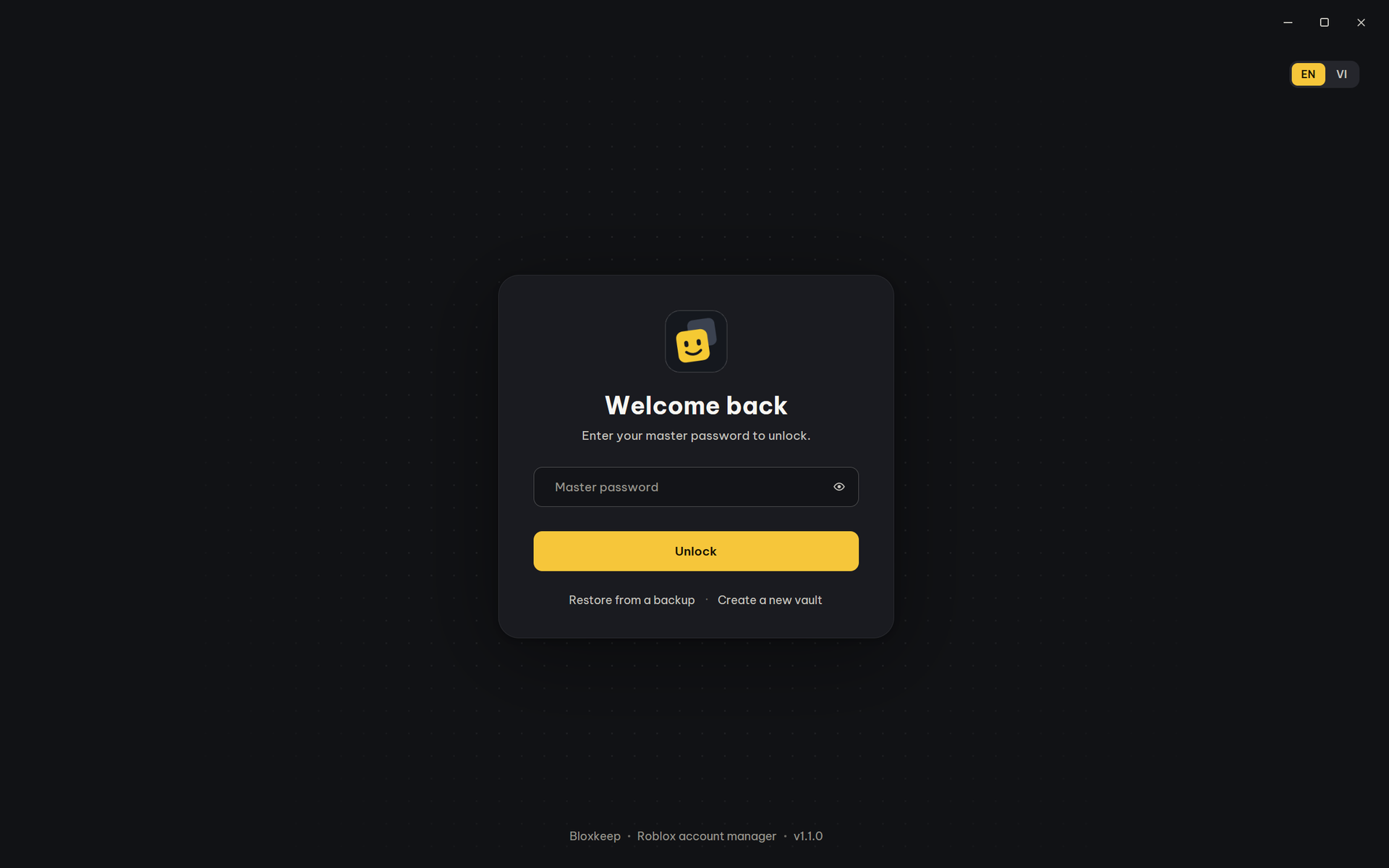
- Each start shows Welcome back: type the master password and press Unlock. A warning shows while Caps Lock is on.
- To change it: Settings › Vault & security. Backups made before the change still open only with the old password.
- Lock automatically (Settings › Vault & security): when nobody has used the PC's keyboard or mouse for the time you pick (5 minutes to 2 hours), Bloxkeep shows this screen again. Roblox, auto-rejoin, scheduled presets and Discord keep running behind it. The Lock button still closes Bloxkeep completely: those pause until you unlock.
Warning
The master password can't be recovered. Bloxkeep never stores it, so if you forget it, your saved accounts are gone. The only way back is a backup whose password you remember.
Automatic backups
Back up to a folder copies the encrypted vault into a folder, so your accounts survive a dead PC.
- Folder: Choose…, or a synced folder Bloxkeep found. Open folder opens it. It must be outside Bloxkeep's own data folder.
- Back up now is greyed out until a folder is chosen. The row says "Last backup: …" or "No backups yet".
- Bloxkeep backs up after changes (at most every 10 minutes), when you lock or quit if something changed, and right after you change the master password or pick a new folder.
- It keeps the 10 newest backups, plus the newest of each day for 30 days. Your OneDrive or Google Drive app uploads them.
- If your master password is easy to guess and the folder is a cloud folder, a note suggests a longer one.
Restoring and moving to a new PC
A backup opens with the password it was saved with.
| Way | Use it when | What happens |
|---|---|---|
| Restore from a backup (first screen) or Settings › Backup & data › Restore › Restore… | A new PC, or to go back to a backup. | Always asks first. Your current data is kept as a copy, then Bloxkeep locks: unlock with the backup's password. |
| Settings › Backup & data › Import accounts from a Bloxkeep file › Import… | You want accounts from another vault or backup. | Adds accounts; yours stay as they are. |
Importing from another Bloxkeep file
Bring accounts from vault.rmv on another PC, or from a Bloxkeep-backup-… file. It is in three places: Add account › Other ways to add › Import from another Bloxkeep file…, With a Bloxkeep file in Sign in to Roblox, and Settings › Backup & data › Import….
- Press Choose file… and pick the
.rmvfile. - Type Master password of this file and press Open.
- Tick the accounts to bring over. Each shows New or Already here, and whether it is signed in, needs sign-in, wasn't checked, or has a password saved. All new / None tick the new ones or nothing.
- Optionally tick Also import presets (N).
- Press Import.
- The file itself isn't changed. Imported accounts are locked with this Bloxkeep's master password.
- For an account already here, only a sign-in that no longer works is replaced. Your names, groups and notes stay.
More details
Imported presets come with their schedules switched off, and accounts that aren't here are left out of them. You can keep up to 50 presets. After three wrong passwords, Open counts down before the next try. You can't import the vault you are using.
Where your data lives
Settings › Backup & data › Data location › Open folder shows it. For the installed app it is %LOCALAPPDATA%\Bloxkeep; the portable copy uses a data folder next to Bloxkeep.exe.
| File | What it is |
|---|---|
vault.rmv |
Your accounts, encrypted. |
vault.rmv.bak |
The previous save. |
error.log |
Errors, without account details. |
Warning
Never send anyone vault.rmv or a backup file. The full list is in the README.
What leaves the PC
Bloxkeep has no accounts or analytics of its own. Your accounts, settings and history stay on your PC, in a vault encrypted with your master password, which is never stored. Data only leaves your PC for what you use:
| Where | What |
|---|---|
| Roblox | Signing in, status, games and servers. |
| GitHub | Bloxkeep updates, with no account data. |
| Your backup folder | The encrypted vault. |
| Your Discord webhook | Only when you turn it on. Never cookies or passwords. |
| Bloxkeep's developer | Feedback you choose to send. |
| Bloxkeep's Discord bot | While Bloxkeep is open, a note every few minutes for the online count: a code made from this PC (it can't be traced back), the version, the language, the games your accounts are in, how many run, why one dropped out and the theme you picked. Never an account. Turn it off in Settings › Bloxkeep › Privacy › Add me to the online count. |
The full list is in the privacy policy.
Hide account names
Settings › Appearance › Hide account names shortens every name to its first letter, like Discord's streamer mode ("Farm 1" shows as "F…"), everywhere, Roblox window titles included.
- Avatars stay, so you can still tell the accounts apart.
- @usernames disappear and Edit hides the user ID.
- The Nickname box can't be edited meanwhile.
- The search still finds accounts by their real names.
- Discord messages have their own switch: Hide account names in messages (see Discord).
Tip
Turn it on before screenshots or streams.
← User guide · Next: Troubleshooting →