
Bloxkeep guide › Accounts
Accounts
How to add accounts, read their cards, find and select them, and use the account menu.
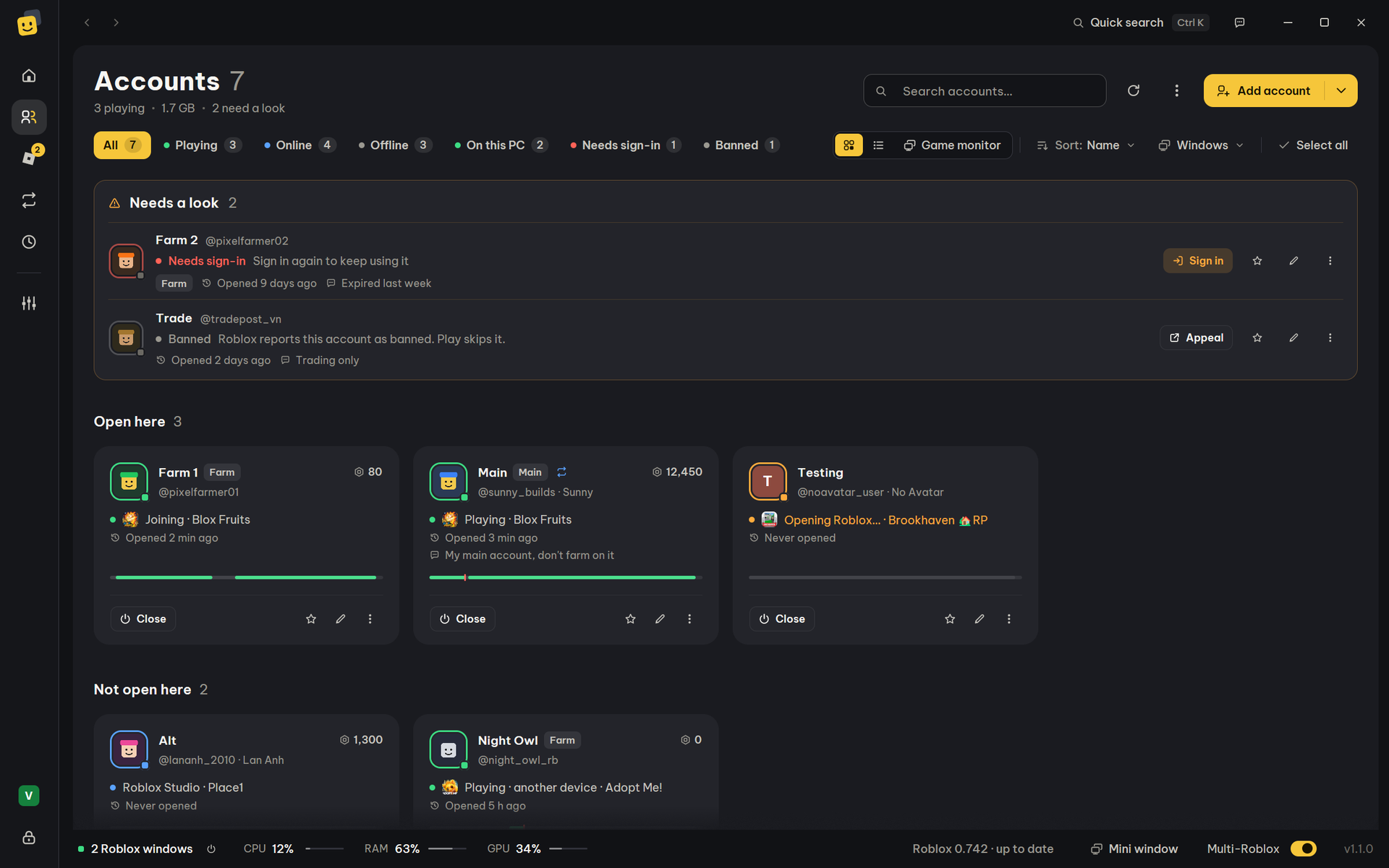
Quick steps
- Click Add account.
- On your phone, open the Roblox app signed in to the account and go to Settings → Quick Log In.
- Enter the code Bloxkeep shows, or scan the QR, then confirm on the phone.
- A new code appears for the next account. Press Done when you have them all.
Ways to add an account
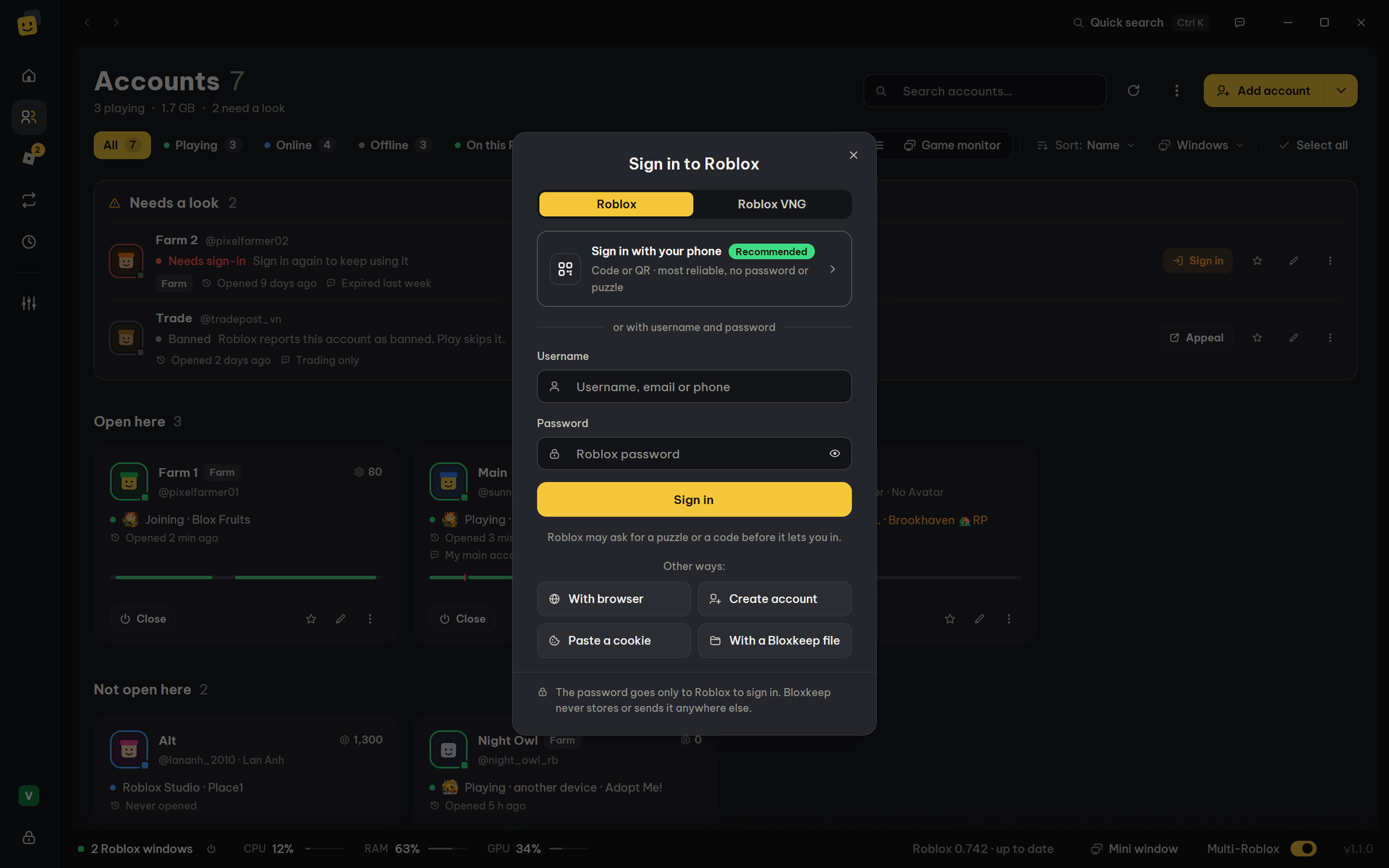
Add account opens Sign in to Roblox. The arrow beside it, Other ways to add, lists the rest.
| Method | When to use it | Notes |
|---|---|---|
| Sign in with your phone (recommended) | Almost always. | Code or QR, no password, no puzzle. The code renews itself a few times, then press New code. |
| Use username & password | No phone at hand. | The password goes only to Roblox; Bloxkeep never stores it. Roblox may ask for a puzzle or a 2-step code. |
| Sign in with a browser | The other ways fail, or Roblox wants an extra check. | The official roblox.com sign-in page. Needs www.roblox.com and Microsoft Edge WebView2. Not for Roblox VNG. |
| Paste a cookie | You already have the account's .ROBLOSECURITY cookie. |
Only Cookie .ROBLOSECURITY is required. |
| Open roblox.com, then Save to Bloxkeep | You mostly want the website, several accounts side by side. | A blank tab in the Bloxkeep browser window (Open website). Sign in, then Save to Bloxkeep. |
| With a Bloxkeep file | Moving accounts from another PC or a backup. | Needs that file's master password (Import). |
Adding an account that is already in the list never makes a copy: its sign-in is updated. Bloxkeep can't read other account managers' files; if the other tool shows an account's cookie, use Paste a cookie.
Warning
The .ROBLOSECURITY cookie is the full key to an account: anyone who has it can use the account. Never share it.
More details
- Phone: when the phone has entered the code, confirm there. "The code expired" and "Declined on the device." both need New code. The Roblox / Roblox VNG tabs choose the realm.
- 2-step verification: type the 6-digit code from the tab your account has (Authenticator app, Email, Text message). If the authenticator key is saved in Bloxkeep, the code is filled in: press Verify.
- Roblox sometimes refuses a password sign-in (locked account, passkey or security key). The message then tells you to use your phone or the browser.
The account card
The page puts the accounts in three parts: Needs a look (an account that needs sign-in, is banned or is waiting to rejoin, one line each with what to do), Open here (Roblox is open for it on this PC) and Not open here.
The dot on the avatar shows the status, and the line under the name says it in words with the game:
| Line under the name | Meaning |
|---|---|
| Playing, Joining, Waiting for a server, Server full, waiting, Teleporting, Playing · another device | In a game or on the way in, on this PC or another device. Server full shows the place in line when Roblox gives one. |
| Online, Roblox open · Not in a game, Didn't get into the game | On the Roblox website or app, or Roblox is on its home screen on this PC (after a join that failed, or a wait given up, it says so). |
| Roblox Studio | Building a game. |
| The reason, such as Kicked for AFK, Kicked by the game or Server shut down | The window is open but out of the server. When Roblox didn't log why, it says Disconnected · Reason unknown. |
| Offline, Signed out, Status unknown | Not active; Roblox is open here without this account; or not loaded yet. |
A red ring around the avatar means Needs sign-in or Banned. While Bloxkeep is working you also see Opening Roblox…, Rejoining · this PC (Cancel stops it) and Restarting · this PC (a preset's planned restart).
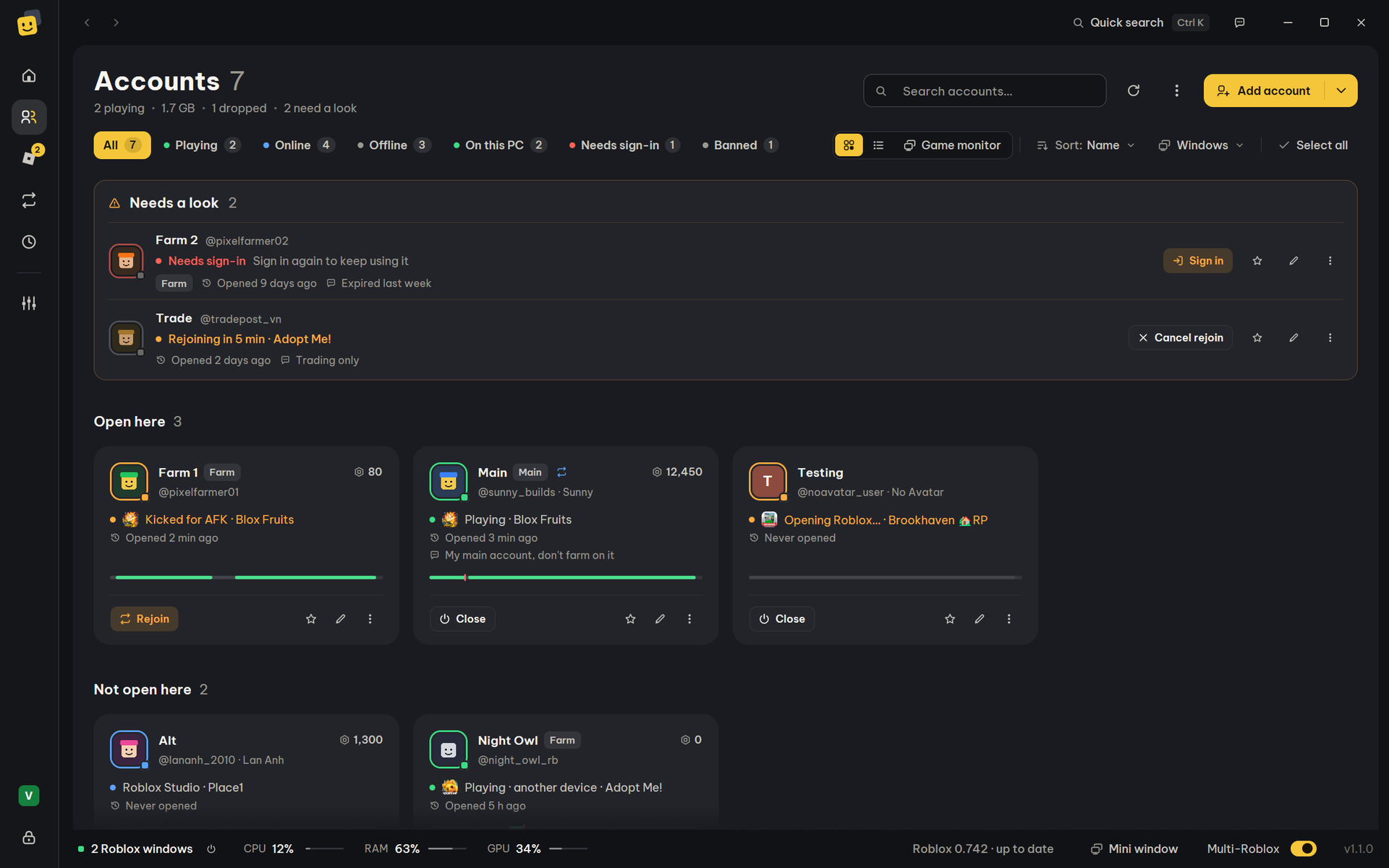
The number at the card's top right is the account's Robux, read with its own sign-in every 30 minutes and kept only on this PC. The buttons are Play (Close while open, Rejoin after a drop, Cancel rejoin while a rejoin waits, Sign in when it needs sign-in, Appeal when banned), ☆ to make it a main account, ✏ Edit (F2) and ⋮ for the account menu. Status refreshes every 30 seconds; Refresh online status does it now.
Select, search and sort
- Click a card to select it, click again to unselect. Shift+click selects a range. Double-click plays that account alone.
- Ctrl+A or Select all selects every account shown. Esc or ✕ on the bar at the bottom clears the selection.
- Search (Ctrl+F) matches names, @usernames, nicknames, groups, notes, the game being played and user IDs. Accents don't matter.
- Filter chips show a count: All, Needs sign-in and Banned (only when some accounts are), Playing, Online, Offline, On this PC.
- Group appears once an account has one (set it under Edit › Group). Sort: Name, Status, Last played, Launch order.
- Cards / List switch the layout, and Game monitor shows the Roblox windows themselves (Windows and statistics). Layout and sort are remembered.
If the search or a filter hides some selected accounts, the header says how many. Play and Delete still act on them.
The account menu
Open it with ⋮ on a card, or right-click the account. If the account isn't selected, the menu acts on that account alone and leaves your selection as it is; if it is in a selection, the menu acts on every selected account.
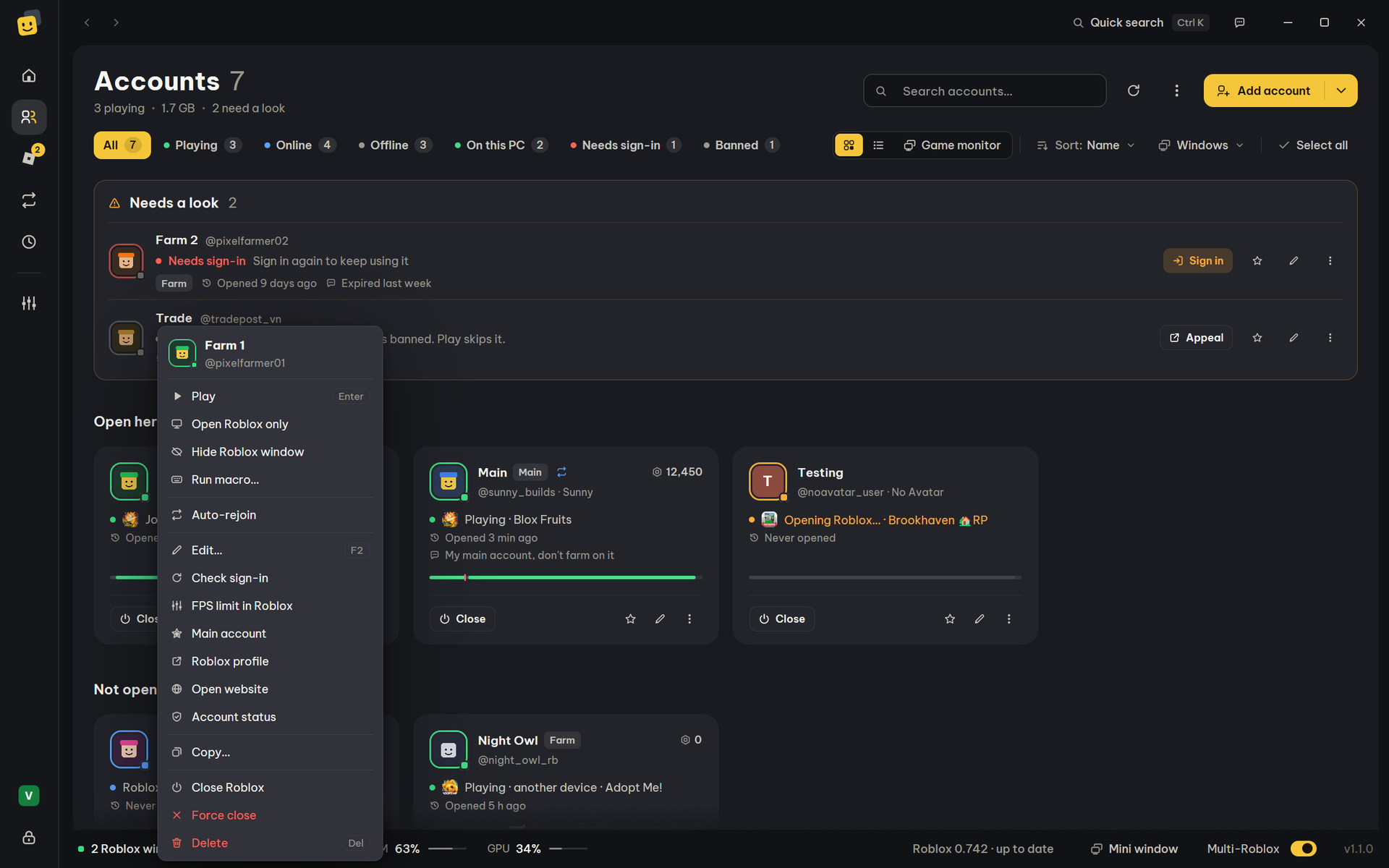
| Item | What it does | Unavailable when |
|---|---|---|
| Play / Play (N accounts) (Enter) | Opens the game in the game box, or Roblox's home screen if it is empty. | — |
| Open Roblox only | Opens Roblox on its home screen, one window per account. | — |
| Close Roblox | Closes the Roblox window normally. | None of the selected accounts is open here. |
| Force close | Ends Roblox at once, for a frozen window. Unsaved game progress is lost. | Same as Close Roblox. |
| Edit… (F2) | Nickname, group, password, authenticator key, note. | Several selected. |
| Check sign-in | Checks the saved sign-in and whether Roblox reports a ban. | — |
| Join this server | Puts this account's game and server (Job ID) in the bar at the bottom of Accounts; select others and press Play to land together. | Several selected, or the server isn't known. |
| Hide Roblox window / Show Roblox window | Hides the window and its taskbar button while the game keeps running (auto-rejoin and anti-AFK too). Windows at the top of the page hides or shows them all; so does Ctrl+Alt+H. Bloxkeep shows them again when it closes. | No account playing on this PC. |
| Switch to another server | Closes the window and opens it again in another server of the same game with room. Accounts of the same game switched together land in the same server. | None of the selected accounts is playing in a public server on this PC. |
| Solve the bot check | Only on a card that says Roblox wants a bot check: shows Roblox's check in Bloxkeep's own window, then opens the window again into its game once Roblox lets it in. | — |
| Auto-rejoin | Turns auto-rejoin on or off for these accounts. | — |
| FPS limit in Roblox | This account's own limit, from its next opening. Works even when Apply to is Nobody. Check it with Shift+F5 in the Roblox window. | — |
| Use Roblox settings | Includes these accounts in Roblox settings (graphics, FPS, volume). | Shown only when Settings › Staying in game › Apply to is Chosen accounts. |
| Main account | Marks the account you play on yourself (ticked when it is). It opens without Bloxkeep's Roblox settings or Fast Flags; Select all skips it; Save RAM, the RAM limit, Arrange windows, Prioritize the window you play and Restart a heavy window leave its window alone. | — |
| Friend each other | Makes every pair of the selected accounts Roblox friends. If Roblox asks for a check, it shows to solve. | Shown only with several selected; greyed out with fewer than two signed-in accounts (Roblox VNG not counted). |
| Roblox profile | Opens the profile on roblox.com in your browser. | Several selected, or no user ID. |
| Open website | Opens roblox.com signed in as this account, in the Bloxkeep browser window. | Several selected, or Roblox VNG. |
| Account status | Opens Roblox's account status page (Violations & Appeals) signed in as this account, in the Bloxkeep browser window. | Several selected. |
| Copy username | Copies the username. | Several selected. |
| Copy password | Copies the saved password. | Several selected. No password saved: it says why. |
| Copy 2FA code | Copies the current 6-digit code. | Several selected. No key saved: it says why. |
| Delete / Delete N accounts (Del) | Removes the accounts after a confirmation. It can't be undone. | — |
The ⋮ menu at the top of the page has Check sign-in of all accounts, Launch order… (needs 2 or more accounts; see Playing), Close all Roblox, Force close all Roblox and User guide. Windows beside it has Open Roblox only, hiding or showing every Roblox window, and the window layouts (Windows and statistics).
Copy password and Copy 2FA code
Bloxkeep never keeps the password you sign in with. Until you save one yourself, Copy password says "No password is saved for this account". Copy 2FA code needs an authenticator key in the same way. To save them:
- Select the account and press F2 (or Edit… in the menu).
- Type the password in Roblox password. For 2FA, paste the key (letters A–Z and digits 2–7) or the
otpauth://link into Authenticator key, then check that "Code now: …" matches your authenticator app. - Press Save. Edit now shows the running 2FA code with Copy and Remove.
- Copy password clears the clipboard after 30 seconds. The password sits in the encrypted vault, only for you: Bloxkeep doesn't use it to sign in.
- Copy 2FA code copies the current code ("It changes in N s."). A password sign-in fills it in for you too.
Warning
With the key saved in Bloxkeep, anyone with your master password can make codes. Save it only if that is fine with you.
Needs sign-in and Banned
| Badge | Why | What to do |
|---|---|---|
| Needs sign-in | Roblox ended the saved sign-in: a password change, "log out of all sessions" or a security check. | Press Sign in on the card and confirm with your phone, or add the account again any way (it is updated, not copied). |
| Banned | Roblox's public information says so; it is read during sign-in checks. | Its button is Appeal: Roblox's Violations & Appeals page in the Bloxkeep browser, signed in as that account (only it can appeal). Play and presets skip it, and auto-rejoin doesn't reopen it. When the ban is over, ⋯ › Check sign-in clears the badge. |
The Needs sign-in filter lists them all. Check sign-ins every day finds them before you press Play (Staying in game). To check now, use ⋯ › Check sign-in on an account, or ⋮ › Check sign-in of all accounts at the top of the page.
Import from another Bloxkeep file
For accounts in vault.rmv from another PC, or a Bloxkeep-backup-… file. Open it from Other ways to add › Import from another Bloxkeep file…, or Settings › Backup & data › Import accounts from a Bloxkeep file › Import….
- Choose file… and pick the
.rmvfile. - Type Master password of this file and press Open.
- Tick the accounts to bring over. Each shows New or Already here. All new / None tick the new ones or nothing.
- Optionally tick Also import presets (N), then press Import.
- The file itself isn't changed. Imported accounts are locked with this Bloxkeep's master password.
- For an account already here, only a sign-in that no longer works is replaced. Your names, groups and notes stay.
- Imported presets have their schedules switched off. To replace everything instead (a new PC), use Restore (Backup and security).
Roblox VNG
Add these accounts on the Roblox VNG tab of Sign in to Roblox or Sign in with your phone (confirm in the Roblox VNG app). There is no browser sign-in for them. They carry a VNG tag.
- Play opens them like any account (new, still being tried out): Bloxkeep gets their sign-in from Roblox VNG and opens Roblox with your usual launcher. Which servers they can join is up to Roblox. If Roblox refuses, the result says why.
- Open website is greyed out for them.
← User guide · Next: Playing →